

Key Takeaways
What That Storage Number Actually Represents
When a phone is marketed as having 128 GB of storage, that number refers to the raw capacity of the flash memory chip inside the device — measured in gigabytes (GB). Think of it like the total floor area of an apartment: it sounds spacious on paper, but some of that space is already occupied before you move a single box in.
Storage capacity is measured using the decimal system by manufacturers (1 GB = 1,000,000,000 bytes), but your phone's operating system measures space using a binary system (1 GB ≈ 1,073,741,824 bytes). This difference alone means a "128 GB" phone displays closer to 119 GB in your settings — before anything is installed.
~7%
Storage lost to binary vs. decimal conversion
A 128 GB phone displays roughly 119 GB in device settings due to how operating systems count bytes versus how manufacturers label capacity.
10–20 GB
Typical OS and system app footprint
Most modern smartphone operating systems and core pre-installed apps occupy between 10 and 20 GB of a device's total storage at initial setup.
300–400 MB
Storage per minute of 4K video
A single minute of 4K footage recorded on a modern smartphone can consume 300–400 MB, making the camera roll one of the fastest-growing storage categories.
Why You Never See the Full Amount
Two factors reduce your usable storage the moment you power on a new phone for the first time:
- The operating system itself — Android or iOS requires several gigabytes just to run. System files, firmware, and core utilities occupy space that is permanently reserved and unavailable to you.
- Pre-installed apps — Sometimes called bloatware, these are apps the manufacturer or carrier places on the device before sale. Some can be deleted; many cannot.
On a typical 128 GB device, you might realistically start with around 100–110 GB of usable space, depending on the manufacturer. Higher-end phones tend to have leaner system footprints relative to their total capacity.
Pre-Installed Apps Can't Always Be Removed
Many phones ship with apps from the manufacturer or carrier that cannot be fully uninstalled — only disabled. Disabling prevents them from running and removes them from your home screen, but does not fully reclaim their storage. Check your Settings → Apps menu to see which apps offer a "Disable" option versus an "Uninstall" option.
What's Eating Your Storage Right Now
Once you're using your phone, storage fills up from several directions simultaneously:
- Apps and their data
- An app's install size is just the starting point. As you use it, it accumulates user data — saved preferences, downloaded content, login tokens, and offline files. A navigation app, for instance, may store several gigabytes of offline maps.
- Cache files
- Apps store temporary data — called cache — to load faster on repeat visits. A streaming or social media app can build a cache of hundreds of megabytes without you ever downloading a thing intentionally.
- Photos and videos
- Modern smartphone cameras shoot at high resolutions. A single minute of 4K video can consume 300–400 MB. If your camera roll isn't regularly offloaded or backed up, it becomes the single largest consumer of storage over time.
- Downloaded content
- Offline playlists, podcast episodes, and documents all count. These are easy to forget about because they were intentional downloads that become outdated.
For a deeper look at how deleting apps interacts with storage, see common myths about freeing up phone storage.
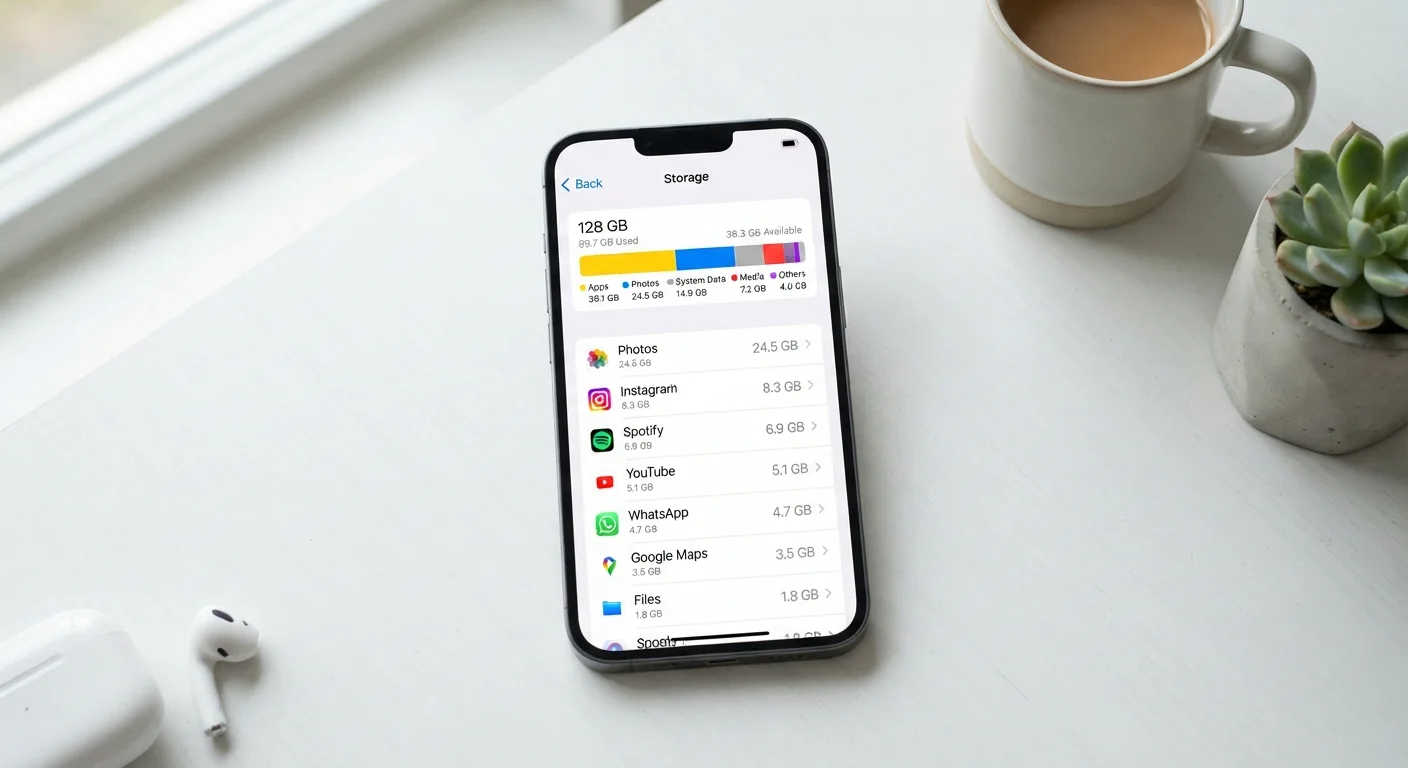
Sort your phone's app list by total size — including data — not just the install size. The install size alone can be misleading; an app you've used for two years may carry far more data than its download size suggests.
Data accumulated over time often dwarfs the original app footprint, and this view reveals the real storage cost of long-term use.
Before clearing any app's cache, make sure you understand what it stores. For most social media and streaming apps, clearing cache only affects temporary files and speeds — but for some apps, it may log you out or remove locally stored content.
Cache-clearing is generally safe, but knowing what an app caches helps you avoid inadvertently losing offline downloads or preferences you rely on.
How to Read Your Phone's Storage Breakdown
Both Android and iOS include a built-in storage screen that categorizes exactly what is using space. It is the most reliable diagnostic tool you have — more accurate than any third-party app.
- On iPhone: Go to Settings → General → iPhone Storage. You'll see a color-coded bar and a list of apps sorted by size, including the amount each app's data and cache occupies separately.
- On Android: Go to Settings → Storage. The exact path varies by manufacturer, but all current Android versions include a breakdown by category (apps, images, video, audio, documents, other).
Pay attention to the "Other" or "System" category — this often contains cached system data that can be cleared safely.
Storage Screens Show a Snapshot, Not Live Data
The storage breakdown in your settings reflects a recent calculation, not a real-time count. After deleting files or clearing cache, allow a minute or two and then refresh the screen — or restart the phone — to see an updated figure. Delays in the display are normal and don't mean the space wasn't reclaimed.
Practical Ways to Reclaim Space
You don't need to delete everything you love. A few targeted actions consistently recover the most space:
- Offload photos to cloud backup — Services that automatically back up your camera roll allow you to delete local copies once confirmed safe. This single step often recovers more space than anything else. Learn how this works in our guide to how cloud storage actually works.
- Clear app caches — On Android, you can clear individual app caches via Settings → Apps. On iPhone, offloading an app (Settings → iPhone Storage → → Offload) removes the app but keeps its data, freeing install space.
- Delete downloaded media — Review offline playlists, podcasts, and video downloads in each relevant app. These accumulate invisibly.
- Remove unused apps — Not just the app icon, but verify its full data is gone. Reinstalling an app on a new device can feel lighter because it starts without accumulated data.
If storage management issues are contributing to sluggish performance, it's worth also checking what else might be affecting your device — see hidden reasons your smartphone drains fast.
Set a Monthly Storage Check Habit
Scheduling a brief monthly review of your storage breakdown screen catches problems before they become urgent. It takes less than two minutes and helps you spot which apps or categories are growing unexpectedly. Catching a 10 GB cache buildup early is far less stressful than scrambling for space when you're trying to take a photo.
When to Consider More Storage
No amount of cleanup replaces having adequate storage for your actual usage pattern. If you consistently find yourself managing space rather than using your phone, that's a signal worth taking seriously.
Consider your storage needs before your next upgrade: a heavy photographer or someone who downloads a lot of offline content may find 128 GB limiting, while a lighter user might not fill 64 GB in years. Some Android phones still support expandable storage via microSD cards — a cost-effective way to add capacity for media storage.
When switching devices, your existing storage habits transfer with you. Planning ahead makes the transition smoother — our practical guide to switching phones without losing everything walks through what to consider before you move your data.
Understanding storage isn't about micromanaging every megabyte — it's about knowing what your phone is actually doing so you can make decisions that match how you really use it.