

Key Takeaways
Battery State of Charge
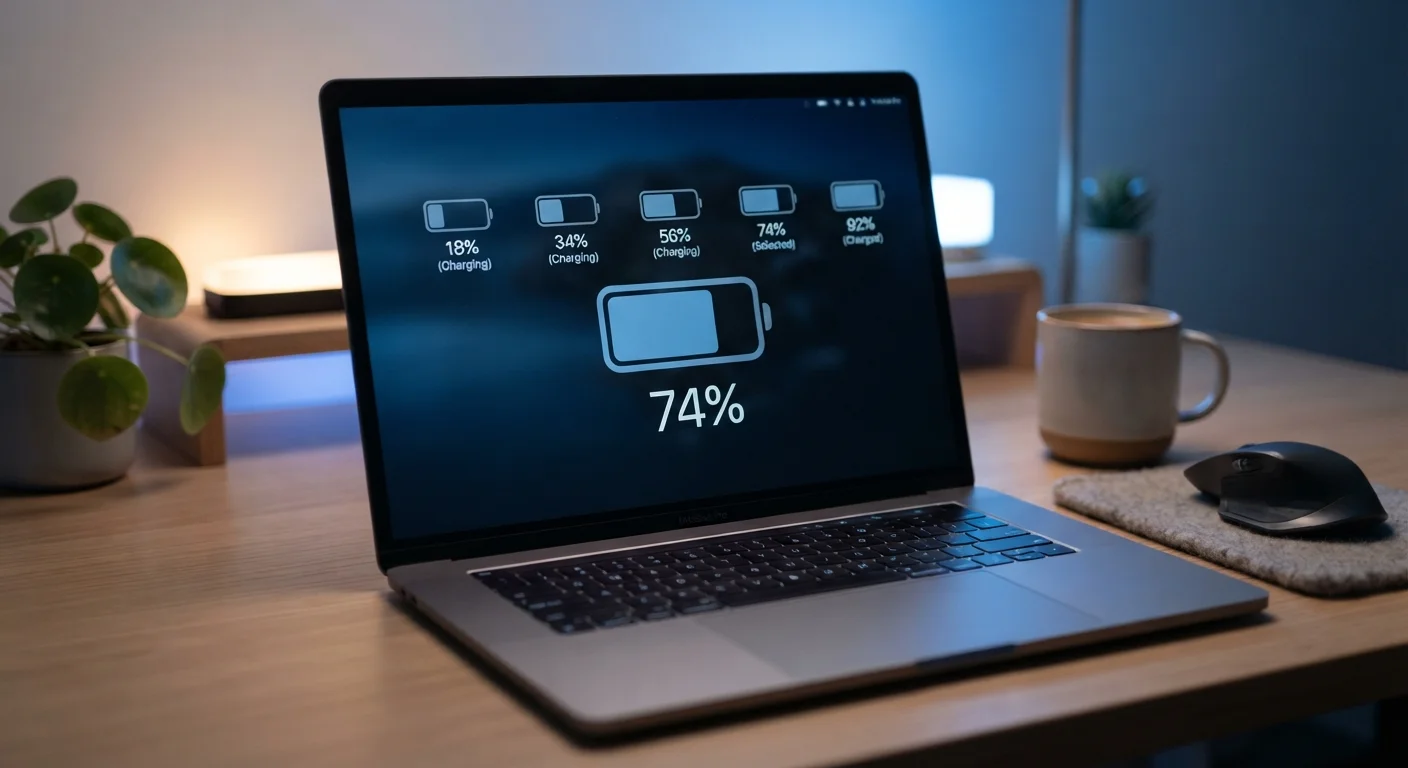
The battery percentage shown on your laptop is called the "state of charge" — it represents how much electrical energy remains in the battery relative to its current maximum capacity. It is measured by the battery management system inside your device using voltage and current readings. Crucially, it reflects the current maximum, not the original factory capacity.
Battery management systems (BMS) use a combination of coulomb counting and voltage curve modeling to estimate state of charge. Over time, cell degradation lowers the total capacity the BMS measures against, which is why a "100%" charge delivers less runtime as a battery ages.
Why 100% Isn't Always the Same Number
Glancing at your laptop's battery icon and seeing 100% feels reassuring — until you notice it drops to 60% after just an hour of light work. The percentage itself hasn't lied to you, but it may be telling you less than you think.
That figure represents your battery's state of charge: how much energy remains relative to the battery's current maximum. The important word is "current." Every lithium-ion battery — the type used in virtually all modern laptops — has a design capacity measured in milliwatt-hours (mWh) when it leaves the factory. Over time, that ceiling shrinks. A battery that held 60,000 mWh when new might hold only 48,000 mWh after two years of regular use. At that point, a full charge still reads 100%, but the runtime you get from it is proportionally shorter.
How Lithium-Ion Cells Actually Work
Lithium-ion batteries store energy by moving lithium ions between two electrodes — an anode (typically graphite) and a cathode (typically a lithium metal oxide) — through a liquid electrolyte. When you charge, ions travel to the anode. When you discharge, they return to the cathode, releasing energy in the process.
Each charge cycle causes minor physical stress: the electrodes expand and contract slightly, the electrolyte gradually breaks down, and a thin layer called solid electrolyte interphase (SEI) builds up on the anode surface. None of this is dramatic in any single cycle, but accumulated over hundreds of cycles, it reduces how many ions can move effectively — and that means less total stored energy.
The battery management system (BMS) inside your laptop tracks voltage and current to estimate what "full" looks like as this capacity shrinks. It's doing its best with a moving target. For more on how similar dynamics affect phones, see what causes rapid smartphone battery drain.
Reading Your Battery Health Report
Both Windows and macOS provide tools to look past the percentage and see the real numbers. On Windows, open Command Prompt and type powercfg /batteryreport, then open the generated HTML file. You'll see two key figures: Design Capacity (original factory spec) and Full Charge Capacity (what the battery can actually hold now). Dividing the latter by the former gives you a rough health percentage that's far more informative than what the taskbar shows.
On macOS, hold the Option key and click the battery icon in the menu bar, or navigate to Apple menu → System Information → Power. You'll find the cycle count — how many complete charge cycles the battery has accumulated — alongside the current maximum capacity.
As a general reference, most lithium-ion laptop batteries are rated for roughly 300 to 500 full charge cycles before capacity drops noticeably below 80% of original. Premium batteries in some newer models may be rated higher. Good charging habits, covered in our guide to making everyday devices last longer, can slow this decline.
Practical Habits That Slow Degradation
You can't stop lithium-ion degradation entirely, but you can pace it. The two biggest factors are heat and sustained extreme charge levels. Keeping your laptop on soft surfaces that block ventilation, or using it while charging in direct sunlight, raises internal temperatures and accelerates chemical breakdown.
On the charge level side, lithium-ion cells experience the least stress when kept between roughly 20% and 80% charge. Many laptop manufacturers now include a "battery care" or "charging limit" mode in their power settings that caps charging at 80% — worth enabling if you mostly use your laptop plugged in. Equally, regularly draining your battery to 0% puts stress on the cells at the opposite extreme.
None of these habits will make your battery immortal, but they can meaningfully extend the window before you need a replacement — keeping your laptop useful and your 100% a little more honest.