

Key Takeaways
Our Verdict
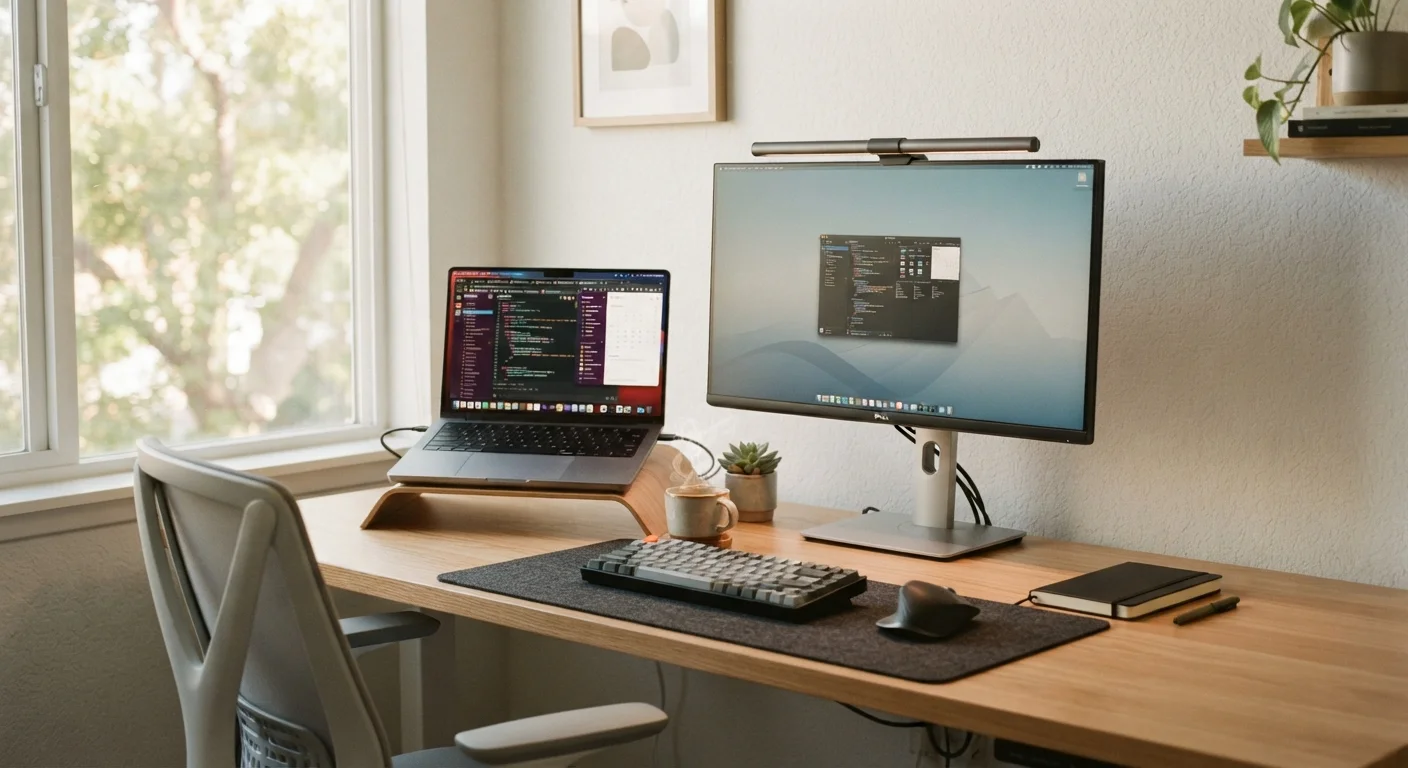
External monitors generally win on ergonomics, screen real estate, and long-session comfort for home workers who stay at a fixed desk. Laptop screens remain the practical choice for those who need mobility within or beyond the home. The two options aren't mutually exclusive — connecting a laptop to an external display combines the strengths of both.
| Best for | Recommended |
|---|---|
| Those doing focused, desk-bound work for long hours daily | External Monitor |
| Workers who move between rooms or frequently work on the go | Laptop Screen |
| Creative or detail-oriented tasks requiring large screen real estate | External Monitor |
| Minimalist setups with limited desk space or budget | Laptop Screen |
Screen Size and Real Estate
One of the most immediate differences between a laptop display and an external monitor is sheer size. Most laptop screens range from 13 to 16 inches diagonally, while standalone monitors commonly start at 24 inches and go well beyond. That extra space isn't just comfort — it changes how you work.
With a larger monitor, you can place two documents side by side without constant switching, read spreadsheets without horizontal scrolling, and keep communication tools open alongside your primary task. Laptop screens, by contrast, often require more window juggling, which adds small but cumulative mental overhead throughout the day.
Resolution matters too. Many modern laptops have sharp, high-pixel-density displays. But a large monitor with a lower pixel density can appear less crisp at normal viewing distances — so when evaluating an external display, check both physical size and native resolution together, not just one figure in isolation.
Ergonomics and Eye Comfort
Ergonomics is where laptop screens consistently fall short. A laptop on a desk places the screen well below comfortable eye level, encouraging forward head tilt — a posture that can contribute to neck and shoulder tension over time. External monitors can be adjusted in height and tilt, or positioned on a monitor arm, so your gaze lands naturally at or just below the horizon.
A Simple Ergonomic Baseline
If you're using a laptop without an external monitor, a laptop stand paired with an external keyboard and mouse is a low-cost way to raise the screen closer to eye level. This single change addresses the most common ergonomic complaint about built-in laptop displays — the forced downward gaze — without requiring a full external monitor setup.
Eye strain during extended screen sessions is influenced by multiple factors: screen brightness relative to room lighting, text size, refresh rate, and how often you take breaks. Adjusting these variables applies whether you use a laptop or a monitor. The evidence on screen time and wellness is nuanced, but proper ergonomic setup is a consistent recommendation from occupational health professionals.
Some monitors include features like flicker-free backlighting and low-blue-light modes, which some users find reduces fatigue. These aren't universally necessary, but they're worth considering if you regularly work four or more hours in front of a screen.
Portability vs. Productivity
The laptop's defining advantage is that it goes wherever you do. If your home working arrangement means shifting between a kitchen table, a home office, and a café on different days, a laptop screen is simply the practical reality. An external monitor is a fixed asset — useful precisely because it doesn't move.
For workers with a dedicated home workspace, connecting a laptop to an external monitor via HDMI, DisplayPort, or USB-C is a straightforward way to get the ergonomic and visual benefits of a larger screen while keeping laptop portability intact. Many people keep their laptop lid open as a secondary screen or closed in clamshell mode with the monitor as the primary display.
| External Monitor | Laptop Screen | |
|---|---|---|
| Typical screen size | 24–32 inches | 13–16 inches |
| Ergonomic adjustability | High — height, tilt, arm options | Low — fixed to keyboard height |
| Portability | None — fixed to desk | Full — travels with user |
| Setup complexity | Moderate — cables, positioning | None — built in |
| Desk space required | Significant | Minimal (laptop footprint only) |
| Additional cost | Yes — separate purchase | None beyond laptop |
| Best for long work sessions | Yes | Less ideal without accessories |
This hybrid arrangement does add cables and setup steps, which matters if your desk is already cramped. Staying physically active during the workday — whether that means standing periodically or taking short walks — is a separate but related consideration; see practical strategies for moving more at a desk job for ideas that don't require major equipment changes.
Practical Factors: Space, Cost, and Setup
External monitors require desk real estate, power outlets, and at minimum one cable. A 27-inch monitor with a stand occupies a meaningful footprint. If your workspace is a compact corner of a living room, that matters. Monitor arms can reclaim desk space by allowing the screen to be pushed back or swung aside when not in use, but they add another purchase and installation step.
Cost varies widely depending on size, resolution, and panel technology (IPS panels generally offer better color accuracy and viewing angles than TN panels, for instance). The point isn't to recommend specific products, but to note that a functional external monitor doesn't have to be expensive — the primary gains come from size and adjustable positioning, not necessarily premium specs for general office work.
Laptop screens, by contrast, require no additional cost or setup. If your laptop's built-in display is already high quality, and your work sessions are shorter or more varied in location, investing in ergonomic accessories like a laptop stand and external keyboard may deliver comparable comfort benefits at a lower cost than a full external monitor.