

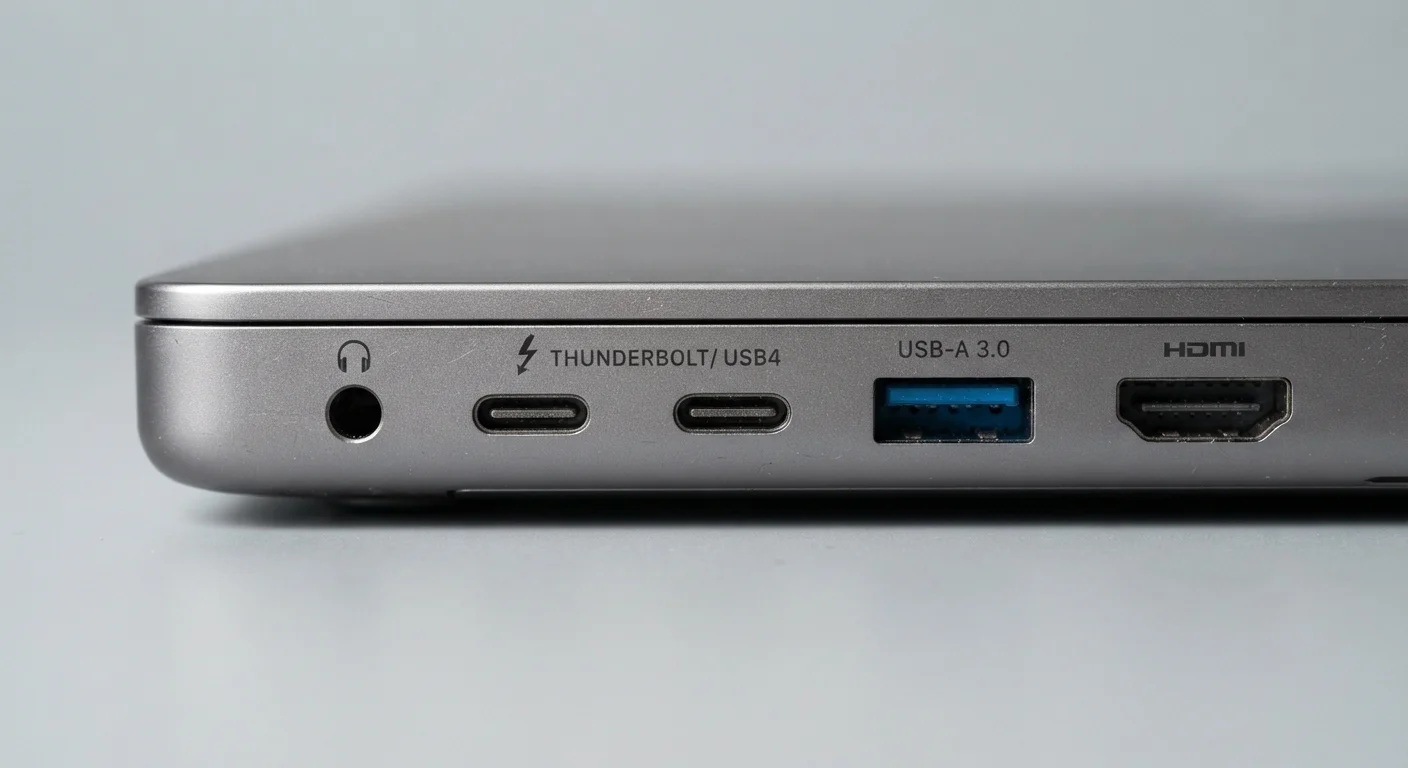
| USB-A max speed (USB 3.2 Gen 2) | 10 Gbps (USB Implementers Forum specification) |
| USB-C connector introduced | 2014 (USB Implementers Forum) |
| Thunderbolt 4 max bandwidth | 40 Gbps (Intel Thunderbolt 4 specification) |
| USB PD 3.1 max wattage | 240 W (USB Implementers Forum, USB PD 3.1 spec) |
| Thunderbolt icon | Lightning bolt (⚡) next to port |
| USB 2.0 max speed | 480 Mbps (USB Implementers Forum specification) |
What Each Port Actually Is
The ports on your laptop, phone, or monitor are not all equal — even when they look identical. Here is a plain-language breakdown of the three most common connector types you will encounter on modern devices.
| USB-A max speed (USB 3.2 Gen 2) | 10 Gbps (USB Implementers Forum specification) |
| USB-C connector introduced | 2014 (USB Implementers Forum) |
| Thunderbolt 4 max bandwidth | 40 Gbps (Intel Thunderbolt 4 specification) |
| USB PD 3.1 max wattage | 240 W (USB Implementers Forum, USB PD 3.1 spec) |
| Thunderbolt icon | Lightning bolt (⚡) next to port |
| USB 2.0 max speed | 480 Mbps (USB Implementers Forum specification) |
USB-A
USB-A is the rectangular connector most people picture when they think of USB. It has been standard on desktops and laptops since the late 1990s. USB-A ports support USB 2.0 (up to 480 Mbps) or USB 3.x (up to 10 Gbps, depending on the version). They carry data and can deliver power, but cannot output video on their own. One limitation: USB-A is not reversible — you have to insert it the right way up.
USB-C
USB-C is the small, oval-shaped connector increasingly found on phones, tablets, and newer laptops. It is reversible, so either orientation works. The connector is just a physical shape, though — the underlying protocol matters more. A USB-C port might support only USB 2.0 speeds (common on budget phones) or full USB 3.2 Gen 2 (10 Gbps). Some USB-C ports also support DisplayPort or HDMI alternate mode, letting you connect a monitor directly. Always check the spec sheet rather than assuming capability from the shape alone.
Thunderbolt (3 and 4)
Thunderbolt is Intel's high-bandwidth protocol that uses the USB-C connector. A Thunderbolt 3 or 4 port looks exactly like a standard USB-C port but carries a small lightning-bolt icon. Thunderbolt 4 delivers up to 40 Gbps, supports daisy-chaining multiple devices, can drive two 4K displays or one 8K display, and charges laptops. Thunderbolt 4 ports are also backward compatible with USB-C devices and cables.
Speed, Power, and Video — At a Glance
40 Gbps
Thunderbolt 4 maximum data throughput
Per the Intel Thunderbolt 4 specification — roughly 83 times faster than USB 2.0.
240 W
Maximum USB Power Delivery wattage
Introduced with USB PD 3.1, enabling USB-C charging for high-performance laptops and workstations.
5×
Speed gain: USB 3.2 Gen 1 over USB 2.0
USB 3.2 Gen 1 delivers 5 Gbps versus USB 2.0's 480 Mbps ceiling.
Speed numbers can be misleading because marketing names and actual throughput differ. The table below maps common labels to real-world specs.
| Standard | Connector | Max Data Speed | Max Power Delivery | Video Out |
|---|---|---|---|---|
| USB 2.0 | USB-A or USB-C | 480 Mbps | Up to 2.5 W | No |
| USB 3.2 Gen 1 | USB-A or USB-C | 5 Gbps | Up to 4.5 W | No (USB-A); Alt-mode possible (USB-C) |
| USB 3.2 Gen 2 | USB-A or USB-C | 10 Gbps | Up to 100 W (USB-C PD) | Alt-mode possible (USB-C) |
| Thunderbolt 3 | USB-C | 40 Gbps | Up to 100 W | Yes (DP, HDMI) |
| Thunderbolt 4 | USB-C | 40 Gbps | Up to 100 W | Yes (dual 4K or one 8K) |
USB-C
A small, oval, reversible connector standard developed by the USB Implementers Forum. It is a physical shape only — the underlying speed and features depend on which USB or Thunderbolt protocol the port supports.
USB-A
The traditional rectangular USB connector found on most computers and chargers since the late 1990s. It is not reversible and does not natively support video output.
Thunderbolt
A high-bandwidth interface developed by Intel that uses the USB-C connector shape. Thunderbolt 4 offers up to 40 Gbps and supports video output, high-wattage charging, and daisy-chaining devices.
USB Power Delivery (PD)
An industry specification that allows USB-C ports and cables to negotiate and deliver higher wattage — enough to charge laptops and other power-hungry devices.
DisplayPort Alternate Mode
A feature on some USB-C ports that lets them carry a DisplayPort video signal alongside USB data, enabling direct connection to monitors without a separate video cable.
Daisy Chaining
Connecting multiple devices in a series — for example, linking two Thunderbolt monitors to a single laptop port — rather than needing a separate port for each device.
Power Delivery (PD) is a separate USB specification that allows higher wattage charging — up to 240 W with the newer USB PD 3.1 revision. A cable or charger must explicitly support PD for high-wattage charging to work, regardless of connector type.
When the Differences Actually Matter
The Cable Matters as Much as the Port
Even if both your device and accessory support Thunderbolt 4 or USB 3.2 Gen 2, a lower-rated cable will cap the connection at its own maximum speed. Thunderbolt cables are certified and labeled; generic USB-C cables may only support USB 2.0 speeds. Check the cable packaging for the speed and wattage rating before assuming full performance.
Transferring Large Files
If you regularly move video files, disk images, or large photo libraries, the port version matters significantly. Copying 50 GB over USB 2.0 can take over 15 minutes; the same transfer over USB 3.2 Gen 2 takes under a minute. Match your external drive's interface to your port's capability — an SSD rated for 10 Gbps plugged into a USB 2.0 port will only run at USB 2.0 speeds.
Connecting External Monitors
Not every USB-C port can drive a display. Look for the DisplayPort alternate mode or Thunderbolt symbol on your device's spec sheet before buying a USB-C-to-monitor cable. Plugging into a data-only USB-C port will not produce a picture.
Charging Laptops
Only USB-C ports with Power Delivery support can charge a laptop. Standard USB-A ports do not deliver enough wattage. If your laptop charges via USB-C, any USB-C PD charger of sufficient wattage should work — though some manufacturers use proprietary charging logic, so verify compatibility before relying on a third-party charger.
Everyday Peripherals (Mice, Keyboards, Flash Drives)
For low-bandwidth accessories, the distinction is mostly irrelevant. A USB 2.0 port delivers more than enough throughput for a keyboard, mouse, or basic flash drive. Focus on having the right connector shape, or use an inexpensive adapter.