

Key Takeaways
Start here
What a Smartphone Actually Is
Next
The Gadgets Most People Use Daily
Build understanding
Key Concepts Worth Understanding First
Take action
Getting Started on the Right Foot
What a Smartphone Actually Is
A smartphone is a handheld computer that happens to include a phone. It runs software called an operating system — either Android or iOS — which manages everything from the camera to the apps you download. Unlike older cell phones that could only call and text, a smartphone connects to the internet, runs thousands of applications, and handles tasks that used to require separate devices: a camera, a GPS navigator, a music player, and more.
The screen responds to touch, so there are no physical buttons for most actions. Swiping, tapping, and pinching are the primary controls. This feels unfamiliar at first but becomes intuitive within days of regular use. Think of learning it the same way you'd learn the controls of any new appliance — a little patience upfront saves a lot of confusion later.
Adjust Text Size Before Anything Else
One of the first settings worth changing on any new smartphone is the display text size. Most operating systems let you increase it significantly in Accessibility settings, making everything easier to read from the start. A comfortable screen reduces eye strain and makes the learning curve noticeably gentler.
The Gadgets Most People Use Daily
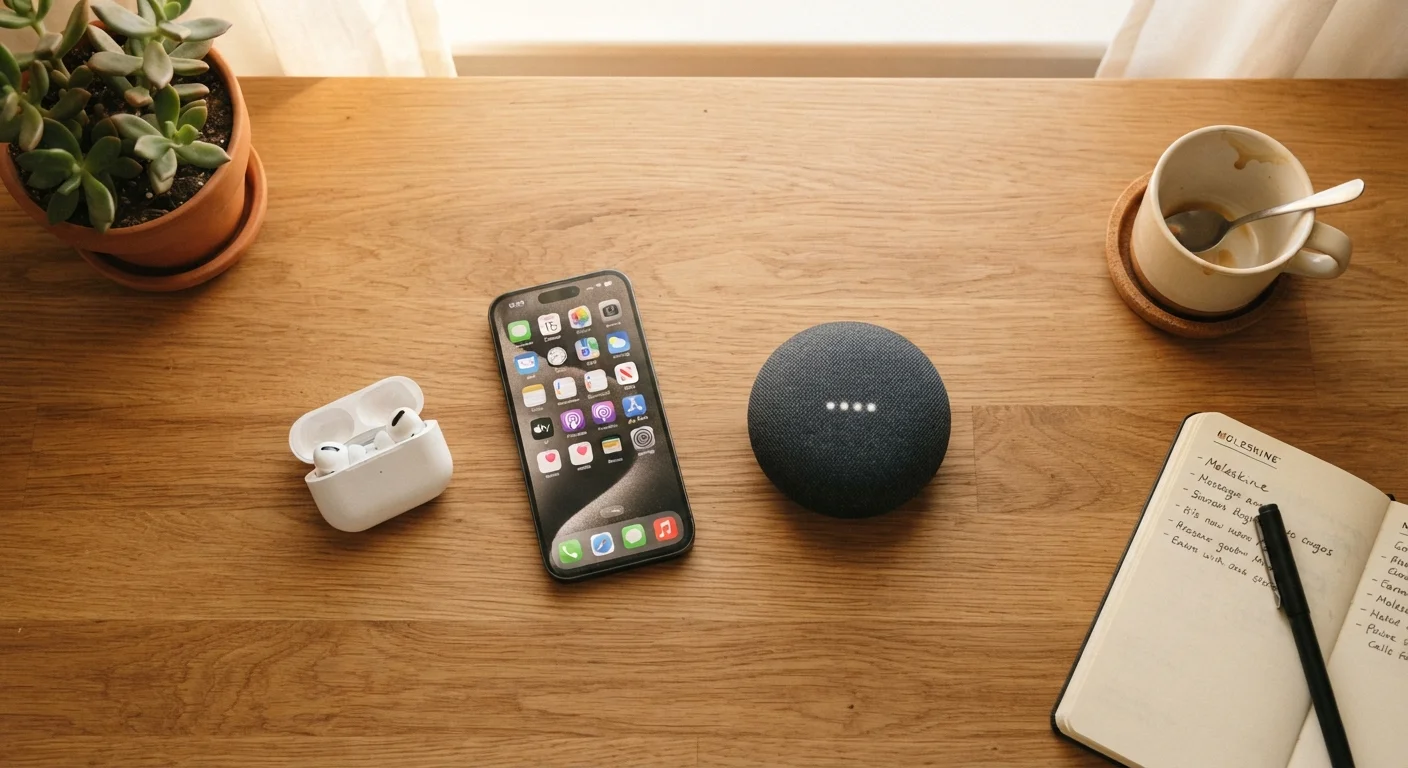
Beyond the smartphone, a handful of other devices have become part of everyday life for many people. Understanding what each one does — and how they relate to each other — helps you decide which ones are actually useful to you.
- Wireless earbuds: Small earphones that connect to a smartphone or tablet via Bluetooth, a short-range wireless signal. No cables required. They're used for calls, music, podcasts, and navigation directions.
- Tablet: Essentially a larger smartphone without the phone component. Easier to read on, type on, and watch video. Shares most of the same concepts as a smartphone.
- Smart speaker: A voice-activated device that connects to your home Wi-Fi. You speak a command — asking for the weather or playing music — and it responds. It doesn't require a smartphone to operate, but integrates with one.
- Laptop: A portable computer running a full desktop operating system. Better suited for writing, detailed tasks, or work. Shares an internet connection with your other devices but operates more independently.
These devices often work together. Your smartphone might control your earbuds, stream music to a smart speaker, and sync notes to your laptop automatically. Understanding the connections between them helps you get more from each one. For tips on keeping all of these in good condition, see our guide on safely cleaning your everyday devices.
Not Every Gadget Is Necessary
It's easy to feel pressure to own every device that gets mentioned as 'common.' In practice, a smartphone alone handles most everyday tasks — communication, navigation, banking, and entertainment. Add other gadgets only if a specific need makes them genuinely useful to you.
Key Concepts Worth Understanding First
A few foundational ideas appear across nearly every device and app you'll encounter. Getting comfortable with these makes everything else easier to follow.
Operating system
The core software that runs a device and controls how apps, settings, and hardware interact. iOS and Android are the two main mobile operating systems.
Wi-Fi
A wireless internet connection delivered through a router. Most homes, cafés, and libraries offer Wi-Fi so devices can go online without using mobile data.
Bluetooth
A short-range wireless signal used to connect two nearby devices — such as a phone and a pair of earbuds — without cables.
App
A software program designed to perform a specific task on a smartphone, tablet, or computer. Apps are downloaded from an app store and run on the device's operating system.
Cloud storage
A service that saves your files — photos, documents, contacts — on remote internet servers so they can be accessed from any device and recovered if your phone is lost or damaged.
Software update
A file that improves or fixes the software already on your device. Updates often close security vulnerabilities, so installing them is generally recommended.
One concept worth highlighting separately is app permissions. When an app asks to access your camera, contacts, or location, it's requesting permission to use parts of your device. You can usually grant or deny each request individually — and revisit those decisions later in your device's settings. Granting only what an app genuinely needs is a sound habit from the start. For a broader introduction to staying safe online, the Digital Safety From the Ground Up guide is a useful next step.
Getting Started on the Right Foot
How you set up a new device matters more than most people realise. A few deliberate choices at the beginning prevent a lot of frustration later — cluttered notifications, unwanted subscriptions, or accounts you didn't mean to create.
When you first power on a smartphone or tablet, you'll be guided through a setup process that asks for an account (an Apple ID for iPhones, a Google account for Android), a Wi-Fi password, and preferences like screen brightness and language. Take your time here rather than tapping through quickly. Our article on setting up a new device without carrying over old problems walks through each step with practical checkpoints.
Once the basics are running, explore what's already installed before downloading anything new. Most devices come with a capable set of built-in apps for maps, messaging, email, and photos. Getting more out of the apps already on your phone shows how much functionality most people overlook in tools they already have. When you're ready to expand further, organising your digital life offers a structured way to keep things manageable as your app collection grows.
Digital Safety From the Ground Up
A plain-language introduction to online security habits, terms, and tools — ideal for anyone building their digital life for the first time.
Apps & Software Hub
Plain-language coverage of the apps and tools that simplify everyday life, from messaging to productivity, written for everyday readers.