

Key Takeaways
Push Notification
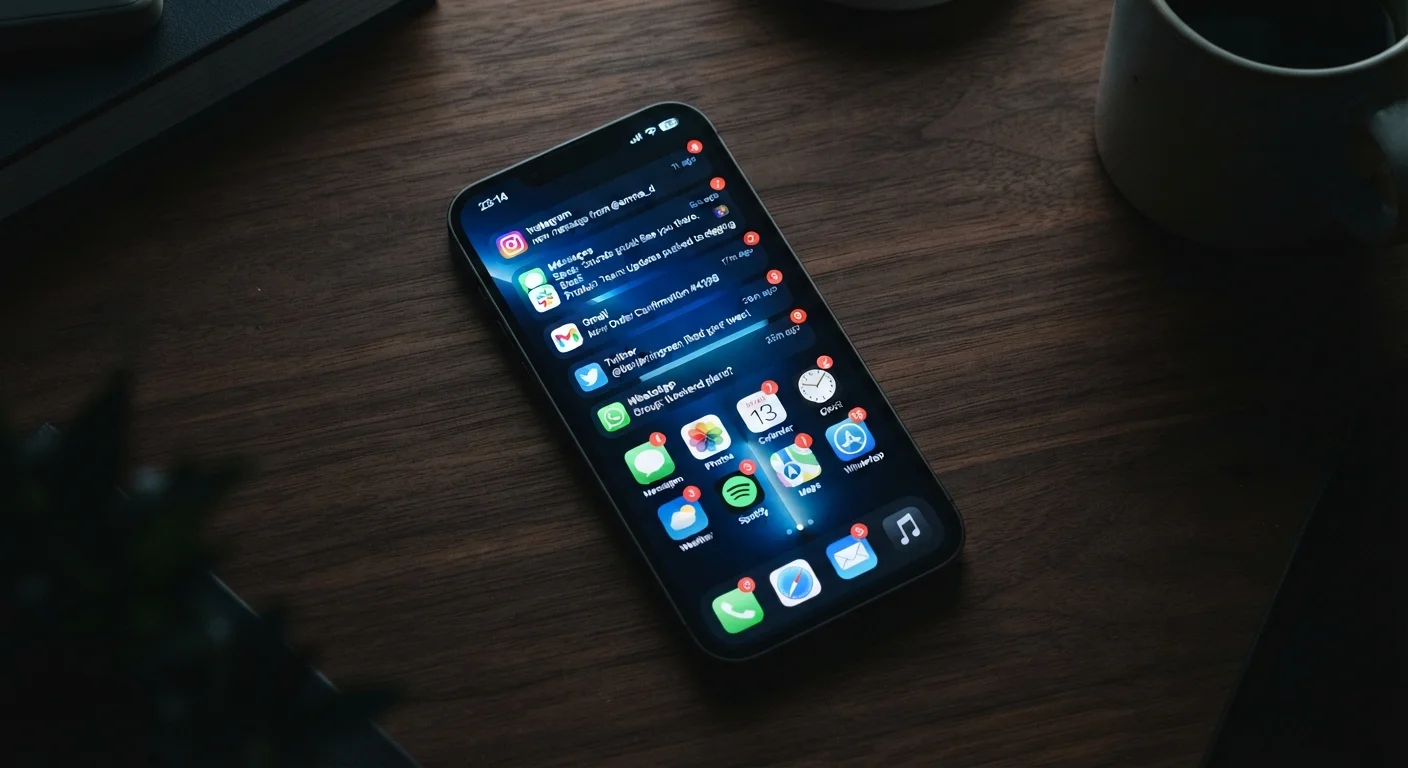
A push notification is a message sent from an app or service to your device without you actively opening that app. The message is 'pushed' to you by a remote server, then displayed by your operating system as a banner, badge, sound, or vibration. Notifications are designed to surface timely information — but the rules for when and how they appear are more layered than most people realize.
Most push notifications are routed through a platform-level delivery service: Apple Push Notification service (APNs) on iOS and Firebase Cloud Messaging (FCM) on Android. These act as secure intermediaries between an app's server and your device.
The Journey From Server to Screen
When an app wants to alert you — say, a messaging app notifying you of a new text — it doesn't contact your device directly. Instead, its server sends a small payload to a platform-level delivery service. On Apple devices that service is the Apple Push Notification service (APNs); on Android it's typically Firebase Cloud Messaging (FCM). These intermediaries authenticate the message, route it to the correct device, and deliver it over an always-on connection maintained by the operating system.
This architecture exists for good reasons. A single persistent connection managed by the OS is far more efficient than dozens of individual apps each maintaining their own open connections. It also creates a checkpoint — the platform can enforce rules about who can send notifications and how often.
Once the payload arrives on your device, your operating system takes over. It reads the notification's metadata (priority level, category, grouping key) and applies your personal settings before deciding whether to show a banner, play a sound, update a badge count, or do nothing at all.
46
Average daily notifications received per smartphone user
Research cited in multiple mobile UX studies estimates the average smartphone user receives dozens of notifications daily, with figures commonly reported around 46 per day.
~23 min
Time to regain focus after an interruption
Studies on workplace attention, including research from the University of California, Irvine, have found it can take roughly 23 minutes to return to a task after an interruption.
60%+
Users who feel overwhelmed by notifications
Consumer surveys on smartphone usage consistently find a majority of users report feeling that they receive too many notifications from apps.
How Your Device Filters What You See
The operating system acts as a gatekeeper between incoming notifications and your attention. Several filtering layers run in sequence before anything appears on your screen:
- App permission: If you never granted notification access, the message is silently discarded. See our guide to app permissions for a deeper look at what notification access actually grants.
- Notification type settings: Even with permission enabled, you may have turned off sounds or banners for a specific app, leaving only badge counts active.
- Do Not Disturb and Focus modes: These system-wide filters suppress most alerts during set hours or activities, with configurable exceptions for priority contacts or apps.
- Notification priority: Apps can flag messages as high or low priority. High-priority notifications (like an incoming call) may bypass some filters; low-priority ones may appear silently.
This layered design means the same notification from the same app can behave differently depending on your settings, the time of day, and what you're doing on your device.
Use Scheduled Summary to Batch Low-Priority Alerts
Both iOS and Android offer a feature that bundles non-urgent notifications and delivers them at set times — for example, 9 a.m. and 6 p.m. This keeps you informed without allowing apps to interrupt you throughout the day. Look for 'Scheduled Summary' in iOS notification settings or 'notification batching' options on Android.
Why So Many Apps Want to Notify You
From a developer's perspective, notifications are one of the most direct ways to bring a user back to an app. Re-engagement is a core metric for most apps, which is why many request notification permission almost immediately after you install them — before you've had a chance to decide whether you actually want that relationship.
Not all notification requests are manipulative. A weather app alerting you to a severe storm, a banking app flagging an unusual transaction, or a calendar app reminding you of a meeting all serve a clear user need. The challenge is that the same permission structure covers both genuinely useful alerts and purely promotional ones.
If you find yourself overwhelmed, a structured audit of your notification settings is one of the most effective steps you can take. Our guide to managing app overload walks through that process calmly and systematically.
Taking Back Control of Your Alerts
Regaining control doesn't require turning off everything — it requires being intentional. A practical approach is to audit notifications by category:
- Security and account alerts: Keep these on. Unusual sign-in notifications and two-factor authentication codes are time-sensitive and important. Our overview of account security habits explains why these alerts deserve priority.
- Communication apps: Consider enabling notifications only from specific contacts or threads rather than for every message.
- News, social media, and entertainment apps: These rarely require real-time interruption. Scheduled check-ins work better for most people.
- Shopping and promotional apps: These are prime candidates for full notification disabling. You can browse their content when you choose to open them.
On both iOS and Android, per-app notification settings let you control sound, banners, lock-screen visibility, and badge counts independently — giving you fine-grained control without a binary on/off choice. Spending 10 minutes in your notification settings is one of the highest-return investments you can make in your daily focus.
Notification Settings Vary by OS Version
The exact location and naming of notification controls differ between iOS and Android versions, and manufacturers like Samsung or Google sometimes add their own layers on top. If you can't find a setting described here, searching 'notifications' directly in your device's Settings app search bar is the fastest way to locate the right menu.